 Outfit Check
Prepare your source
Upload a garment image or import a supported product link. Add a person reference if you want to reuse a particular model.
Turn a clothing image into a styled model photograph.
The garment worn by a model in your chosen pose and photographic style.
Photos are uploaded for processing. Temporary inputs are removed from this studio when the set finishes. Saved references and results stay private. Processing services have their own retention policies.
Inspiration in practice
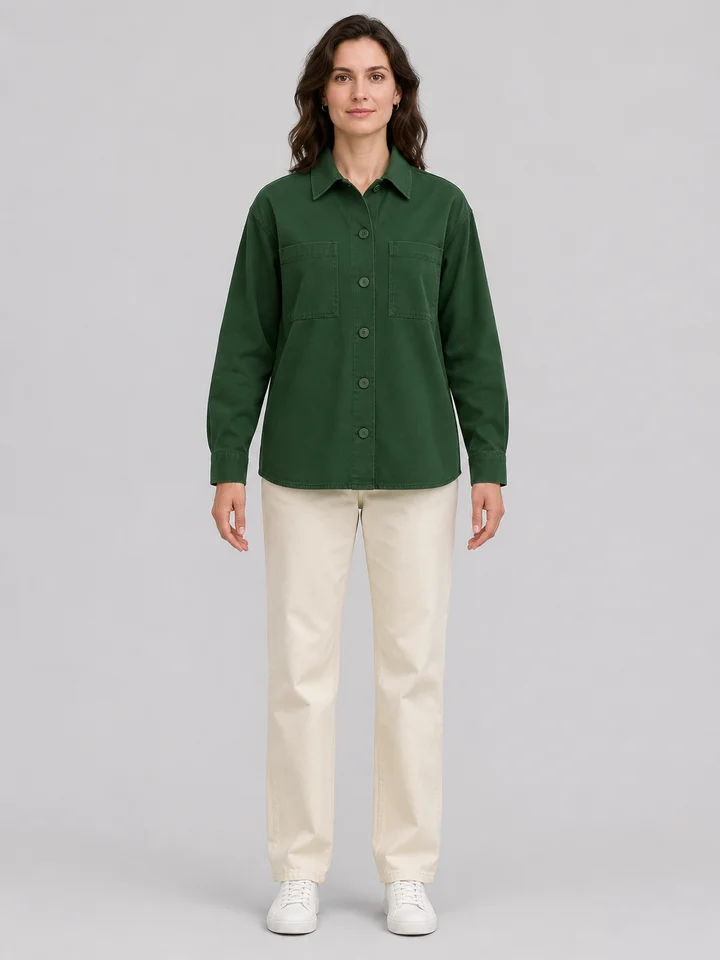
A forest-green trench coat is paired with a dark-bobbed adult model and a sunlit architectural setting. The product supplies the coat, the person reference supplies identity when selected, and the pose and photography style describe how the image should be presented. These choices have different roles.
Try this toolStart with a garment and choose a saved model or let the tool create a fictional adult model. Pose and photography style are separate choices, so you can plan the body position and the atmosphere of the shoot.
Prepare fashion catalog concepts, compare campaign looks or present a garment on a consistent model.
Upload a garment image or import a supported product link. Add a person reference if you want to reuse a particular model.
Use the options above to set the effect you want. Check the credit estimate before you start.
Compare the result with your source and download the finished image or video.
Use a sharp garment photo that shows the full outline and important fastening details. Select a private model reference if continuity matters across products. Set the pose and photography style separately, then review the lapels, belt, buttons and fabric color against the source.
Use Product to Model for a new product-led scene. Virtual Try-On is more suitable for previewing a particular garment on an existing person photo. After creating a useful base image, explore additional views or a different canvas in the related tools.
Upload a garment image or import a supported product link. Add a person reference if you want to reuse a particular model.
Hidden seams, logos and fabric details can be reinterpreted. Review the result against the product before using it in a commercial listing.
Use a sharp garment photo that shows the full outline and important fastening details. Select a private model reference if continuity matters across products. Set the pose and photography style separately, then review the lapels, belt, buttons and fabric color against the source.
Use Product to Model for a new product-led scene. Virtual Try-On is more suitable for previewing a particular garment on an existing person photo. After creating a useful base image, explore additional views or a different canvas in the related tools.